Using the Ad Wizard


Using the Ad Wizard

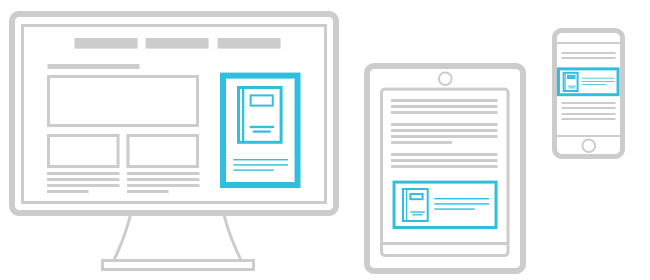
One of the simplest ways to earn with RevResponse is to promote our offers using the ad modules we help you to create. By utilizing the Ad Wizard you can create a variety of promotional material to highlight our offers to your audience by quickly clicking a few buttons.

Creating the Most Basic Ad
When you visit the Ad Wizard, you will see multiple tabs across the top. To create the quickest and most basic ad for placement on your site, select the “Simple Wizard.”

With this tool you only need to make 3 selections in order to produce an ad for your site. Choose the correct dimensions for your ad, the color, and the industry you’d like displayed. Then “update now,” copy the code and place it on your site to begin earning.

*If you have more than one partner site with RevResponse you will see a drop-down box for “brand.” Here you can select which of your sites you are creating the ad for.

For more variety and creative ads, visit the “Advanced Wizard.”

How to Create a Customized Promotion
In the Advanced Wizard, you will find numerous promotional options for your site, newsletter, and blog. All you have to do is select from the drop-down boxes to create the content you’d like to display to your site audience. Then we’ll write the HTML for you and you just drop it on your site.

Start by choosing your “Ad Placement.” Here you choose where you’re planning to host the ad or promotional module you’re going to create – either on your blog or website or in your e-newsletter.

After you’ve decided where you’re going to place the ad/module, then you create it.

You have the option to code your promotion. This is the “Channel Code” space. Here you can name your promotion in order to track the efficiency of one promotion from the next. For more details about Channel Codes, read this.

Next, select the type of promotion you’d like on your site or in your newsletter. As you select, you’ll see a preview of the creative display below in the “Preview” box. Once you find the one you want, you can customize it by selecting a variety of options from the additional drop down boxes.

If you’ve chosen to promote with a Flash Widget on your Website or Blog, you’ll notice that you have a drop-down selection for “Widget Layout.” Here you decide if you’d like your audience to be able to choose the category they are browsing from or not. Selecting “With Category Selects” gives your site visitor the option to view offers from different industries in addition to the one you may choose to display.

Additionally, if you’d prefer to create an Ad Space promotion that does not include our graphic borders, you can do that too. Simply select “Ad Space” from the “Ad Type” menu. Choose your ideal size, color, and images. Then you can un-check the “Include Header/Footer Graphics” box if you’d prefer to have a simple module without our graphic touches.

After you’ve worked your way through the wizard and the “Preview” is showing the creative you want to place on your site or in your newsletter, it’s time to get the HTML. Click the “Generate Ad Code” button and our system will provide you with the code for your promotion. Then copy the HTML code and paste it into your site, blog, or newsletter creation tool.

Once the module is placed, wait for the earnings to start generating!

*Check out these forum posts for more tips for using the ad wizard:

.

The Offer Catalog
One of the most effective ways to earn with RevResponse is to promote specific offers in a conversational manner that caters directly to your audience. You can blog about a select offer, promote it via a hard-coded link in your site and/or newsletter, or simply recommend a few offers in-line on relevant articles you publish. As the publisher of your site, you know your audience the best and can pick and choose from the magazines and downloads that you know will resonate with them. The offer catalog is the place for you to go to select those free promotions for your site visitors.

For a full explanation of the offer catalog, get the scoop here.

Easily Earn Referral Income
The fourth tab in the Ad Wizard is where you can get your “Referral Badges.”

Here you can select an ad you like, place it on your site, and generate earnings from RevResponse for every partner you bring in to our program. By referring other site publishers to our program, you will be paid 20% of the earnings that your referral partners generate for the first 6 months of their partnership.

To place a referral badge on your site, simply choose the one that fits your size constraints and appeals to you. Then copy the HTML code in the box on the right and paste it into your site.

For more information about the program, click here.